YouTube Data API Guide
*Turn on desktop mode/site in your browser
Navigate to Google Cloud Console
First, verify that you are logged into your Google account. Go to the Google Cloud Console API Library.
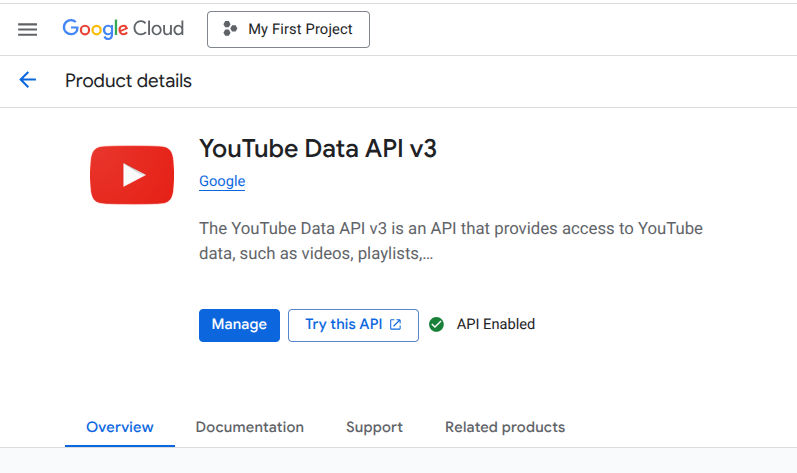
Search for "YouTube Data API v3". If it is not already enabled, click the blue "Enable" button. If it is already enabled, you will see the screen below.
Create New Credentials
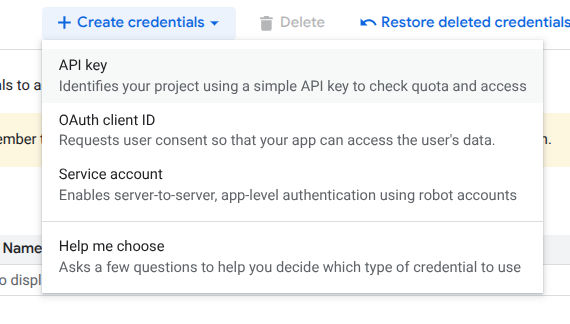
Once the API is enabled, navigate to the "Credentials" tab on the left sidebar. Click on the "+ Create Credentials" button at the top of the page and select "API key" from the dropdown menu.
Configure Your API Key
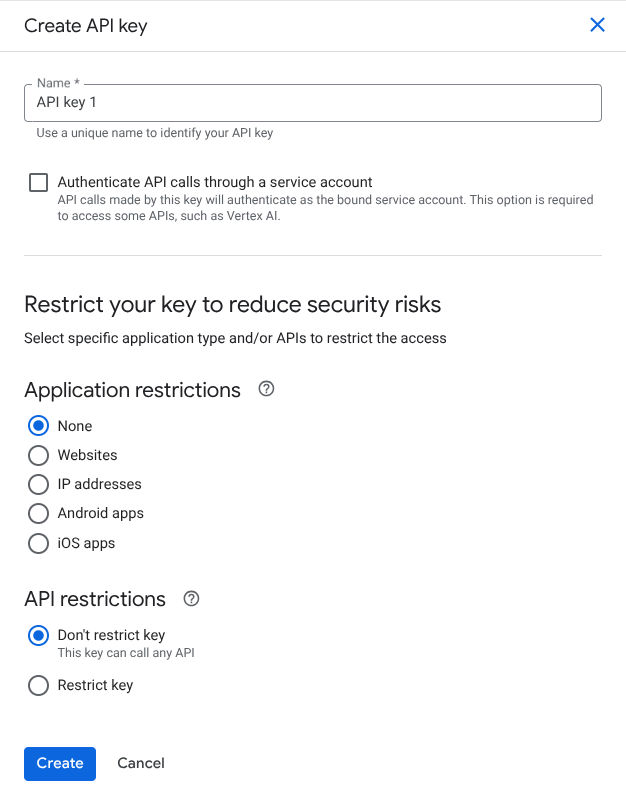
(Optional) You may be asked to configure or restrict your key immediately. It is good practice to give your key a recognizable Name. You can also set restrictions (like "Android apps" or "iOS apps") to prevent unauthorized use, though you can leave it as "None" for testing purposes.
Copy Your API Key
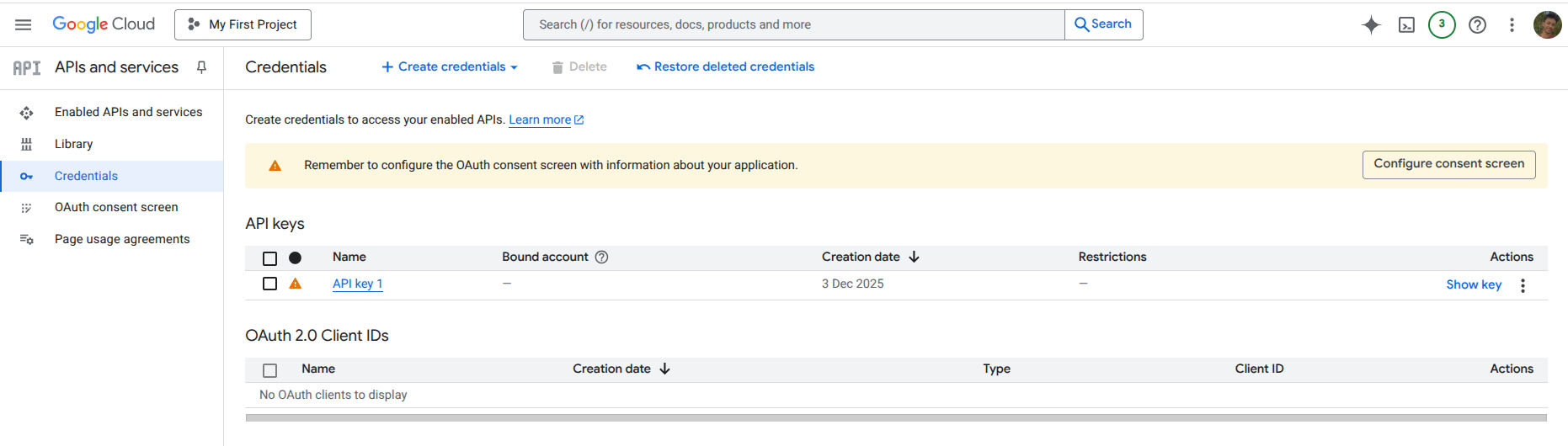
Once created, your key will appear in the "API keys" list.
Locate your key in the list (e.g., "API key 1") and click the Show key button or the Copy icon to copy your string to the clipboard.